

A good song doesn't always need a fresh start. The chorus might need a different delivery, the ending might arrive too soon, or you might want an instrumental version to sing over. Musiko AI's new AI Remix workspace makes an AI music remix possible in four ways: Change Style, Replace Section, Extend Song, and Separate Vocals.
Start with a song from your Musiko library or upload audio you own or have permission to use. You could turn one demo into a rock version, fix a line you keep stumbling over, add an outro, or pull out the instrumental for practice. Which edit does your song need?
Four AI music remix tools in Musiko AI
Each tab starts with source audio, but the result is different. This table shows which one fits your next edit.
| What you want | Choose | What happens to the source |
|---|---|---|
| Hear the song in another genre or vocal treatment | Change Style | Musiko generates a new version from the source. |
| Fix a lyric or musical passage | Replace Section | The selected passage is regenerated; audio on either side stays. |
| Add an ending or take a new direction midway through | Extend Song | Audio before the starting point stays; new music follows. |
| Hear the voice and backing separately | Separate Vocals | You get a vocals track and an instrumental track. |
The biggest distinction is what stays. Replace Section keeps the music on both sides of your selection. Extend Song keeps only the audio before your starting point, so a midpoint extension replaces the old ending. Choose The end if you want to keep that ending and add more after it.
Change Style: Hear the whole song another way
Use Change Style when the song's idea works but its sound doesn't. A piano demo can become rock; a pop draft can move toward folk or electronic music. This AI song remixer makes a new performance from the source, so the vocal delivery may change even if the lyrics stay the same.

How to change a song's style with Musiko AI
Start with a source and describe the sound you want to hear:
Open Change Style and choose a song from your library or upload audio you have permission to use.
Enter the new sound in New Description & Style. If you chose a Musiko song with lyrics, keep or revise the words shown in the editor. Turn on Instrumental if you want no vocals or lyrics.
If useful, choose a voice preference and adjust Style influence or Audio influence under More Options. Add an optional title, then select Generate.
Tips for a better AI style change
To change song style with AI, describe the shift you want to hear rather than asking the track to sound “better.” Try “Turn this soft acoustic verse into upbeat indie rock with live drums.” That's a direction you can judge when you listen back. Style influence controls how strongly the new version follows your description; Audio influence controls how strongly it references the source. Leave either setting unchanged to use the system default.
Replace Section: Fix the part that bothers you
Sometimes the first verse and final chorus work, but a line in the middle lands awkwardly. Replace Section lets you regenerate that passage while keeping the music on either side. The replacement can also change how the new words are sung.
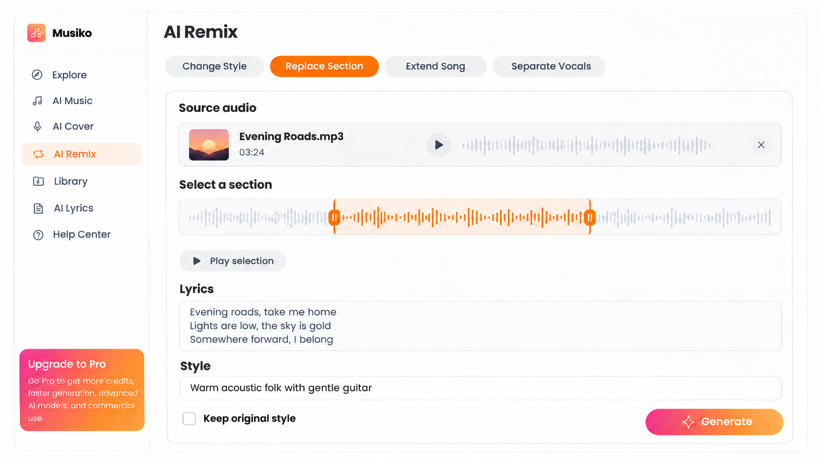
How to replace a song section with Musiko AI
Check the selection before you edit the words:
Open Replace Section, choose your song or upload audio, and wait for the waveform and editing data to load.
Mark the start and end of the passage. Use Play selection to check the cut.
For a song with vocals, enter the complete updated lyrics, including lines you want to keep. Leave Keep original style on, or turn it off and enter a new style. Select Generate.
Keep the edit inside the right boundaries
The selected region must be at least 10 seconds and no more than half of the song. Uploaded audio for this tool must be at least 20 seconds long. Don't enter only the replacement line in the full lyrics field. If the editor says Select whole lyric lines without cutting a line in half, move the selection boundaries between complete lyric lines and play the selection again. If the source or lyric alignment has changed, reopen the editor before submitting.
Extend Song: Continue from the end or rewrite what follows
Extend Song lets you add another verse after the existing ending or branch after a chorus to build a different second half. Musiko keeps everything before your starting point. Start in the middle, and the new music replaces the old ending.

How to extend a song with Musiko AI
Decide where the new music begins, then describe it:
Open Extend Song and choose a library song or upload your audio.
Choose The end to add music after the original ending, or A specific point and enter the time where the new part should begin.
Describe what comes next. Add lyrics for a sung continuation, or turn on Instrumental for music without vocals. Then select Generate.
Choose where the AI song extension begins
To extend a song with AI, decide what you want to keep first. Choose The end when the track works and just needs more time. For a new second half, start earlier and plan your lyrics or instrumental direction around the last phrase you want to keep. Musiko generates the music after that point anew.
Separate Vocals: Get the voice and backing on their own
Separate Vocals splits the source into vocals-only and instrumental tracks. Use the first to hear a vocal line more clearly or the second for singing practice. Both appear beneath the source, with their own play and download controls.

How to separate vocals with Musiko AI
Once you have a source song, the process is short:
Open Separate Vocals and choose a library song or upload audio you have permission to use.
Select Generate and wait for the vocals-only and instrumental tracks to appear beneath the source.
Play each track to check it, then download the one you need.
When vocal separation helps
Use this tool when you want a backing track to practice singing or need to listen closely to the vocal part. It doesn't write new music or lyrics. Choose one of the editing tabs for that.
AI Remix troubleshooting: Common questions
The error message tells you whether to change your input, try another source, or check a task that's already in progress.
Start your next AI remix
Change Style gives a whole song another sound. Replace Section repairs a passage, Extend Song adds a new path from the point you choose, and Separate Vocals gives you voice and instrumental tracks to work with. Choose the edit you want, then open AI Remix and try it on a song you own or have permission to use, so the first result answers a clear question about your music.
Musiko AI's current sign-up offer includes 15 free credits. At the AI Remix costs listed above, that's enough to try any one of the four tools. Start with a single change you can hear clearly, listen to the result, and decide what to remix next.