
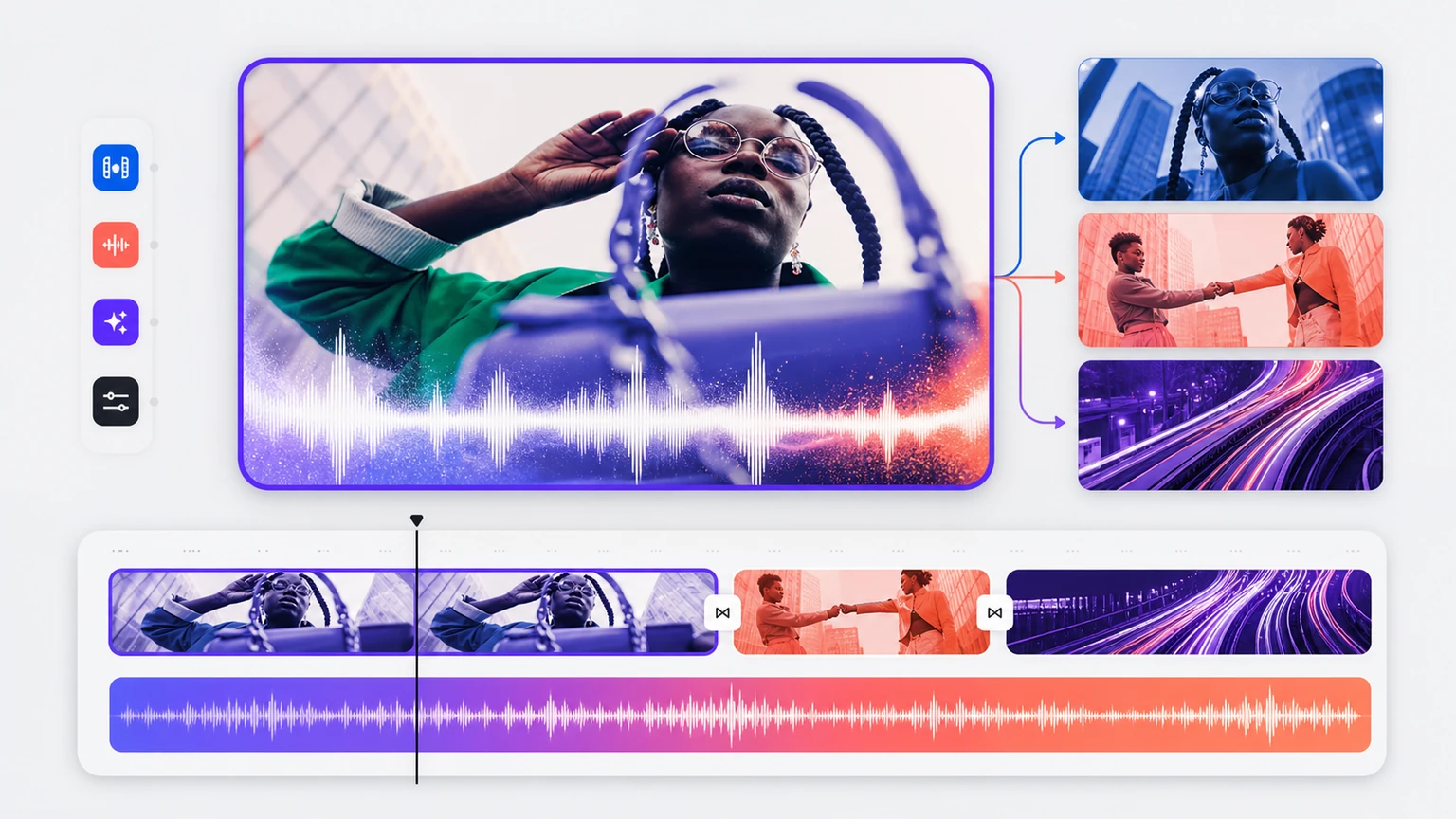
A music video becomes easier once the song is divided into visual moments. Generating unrelated clips first usually leaves a folder of attractive shots with no edit. Make that decision first, then open an how to make a music video with AI.
Related tools may be labeled AI music video generator or AI video for music, but the useful distinction is what you need the finished track to do.
Start with the decision that changes the result
Mark the intro, first hook, quietest section, and final change before writing any image or video prompt.
State the job in everyday language. A label may guide the model, but the job tells you whether the result works.
Build a brief around the actual task
Protect the task, the intended audience, and one noticeable change. A compact brief makes the next revision much easier.
Try this prompt
Create a finished track into a visual plan that follows its sections. Base it on a dreamy pop song built around moving on from an old group chat. Use cinematic social video, with one visual idea per section, repeated colors, and cuts on musical changes. Keep the first verse restrained, let the chorus open up, and finish without a long fade.
Map the song before making visuals
Mark the intro, verse, chorus, bridge, and ending. You don’t need a production spreadsheet. A time stamp plus one sentence per section works. The chorus should usually repeat a visual idea, while the bridge can break the pattern.
Pick one subject, two locations, and a small color set. Random scene generation looks busy fast, especially in vertical video. Repeating a face, object, room, or camera move makes separate clips feel related.
Cut to musical change, not every beat
Constant cutting wears people out. Save larger shot changes for a new section, a drum entrance, a vocal pause, or the hook. Captions need enough time to read on a phone. Test the final clip muted too, since social feeds often start without sound.
Revise one audible choice at a time
Before generating again, name the first mismatch in listening terms, such as a rushed vocal, drums that feel too heavy, or a chorus that never grows beyond the verse.
Plain words work.
Change the instruction tied to that mismatch while keeping the topic and other musical choices fixed, so the next result teaches you something rather than starting another random search.
Two takes are useful.
If both new versions move in the wrong direction, undo the last change and simplify the brief, because conflicting adjectives often cause more trouble than missing production terms.
You can also remove one instrument, shorten the structure, or ask for a calmer delivery when the track feels packed but you can’t identify one obvious cause.
Don’t chase polish yet.
Once the emotional direction, hook, and pacing work together, smaller choices become much easier to judge and you’re less likely to polish a version that never suited the idea.
Give recurring elements a job
Reuse one person, object, color, or location across sections so the viewer recognizes a visual thread. Change framing or motion when the music changes. Consistency doesn't require repeating the same shot.
The next prompt should repair one observable problem. Rebuilding everything throws away information from the first attempt.
Complete the workflow in Musiko AI
Musiko AI keeps the starting point simple for a beginner: create the song in Musiko, then use its structure and lyric to plan clips in a video tool. Easy Mode works when a plain description is enough; Custom Mode is better when lyrics or vocal direction need separate control.
Use the pair of results as a controlled comparison. Choose the stronger foundation and store the exact brief with it.